MoveMonitor User Manual
Introduction
This manual describes how to use the MoveMonitor with McRoberts hardware:
DynaPort 6 (MM & MM+)
DynaPort 7 (DP7)
Both hardware versions are operated in the same way and are generally referred to as DynaPort. Where differences apply, the specific device type is mentioned.
It is recommended to go through this manual before your first measurement to become familiar with the device and workflow.
Account Registration
Each user must create a MyMcRoberts account.
1. Go to:
https://my2.mcroberts.nl/register
2. Enter the required information
3. Enter your Registration Code (provided by McRoberts)
4.Click Create Account
You will receive a confirmation email with further instructions.
Check your spam folder if needed.
Before First Use
All steps, from preparing measurements to viewing reports, are performed via https://my2.mcroberts.nl
Install DynaPort Manager
After your first login:
1. A pop-up will appear prompting you to download the DynaPort Manager
2. Install the software using the wizard
3. Repeat this for each computer you use
This software enables communication between your device(s) and the platform.
Preparing the Device for a Measurement
Charging the Device
Charge the DynaPort before use to ensure full measurement capacity.
If the battery runs out during a measurement, it will stop prematurely.
Battery Maintenance
To protect the Lithium-Ion battery:
Store devices fully charged
Keep in cool environments
Recharge every 3 months during storage
How to Charge
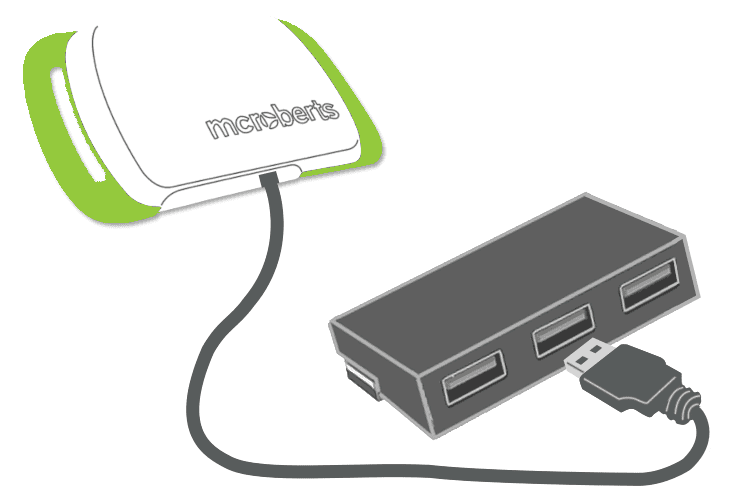
Connect the device via USB to a PC or adapter
Use a powered USB hub for multiple devices
Charging time:
MM(+): up to 5 hours
DP7: up to 3 hours
LED Status Indicators
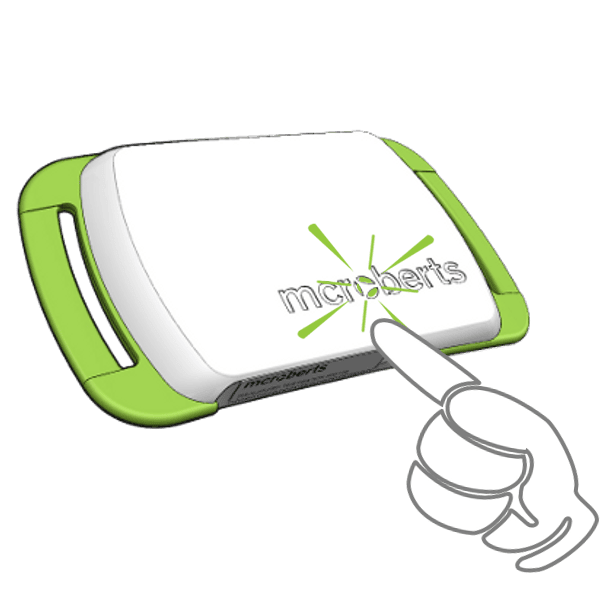
MM(+)
Blinking green → charging (while connected) or measurement just started (for the first 5 minutes, while disconnected)
Solid green → fully charged
DP7
Red blinking → low battery
Orange blinking → 5–75%
Green blinking → 75–95% or measurement just started (for the first 5 minutes, while disconnected)
Green steady → 95–100%
Blue→ connected to PC
Starting a Measurement
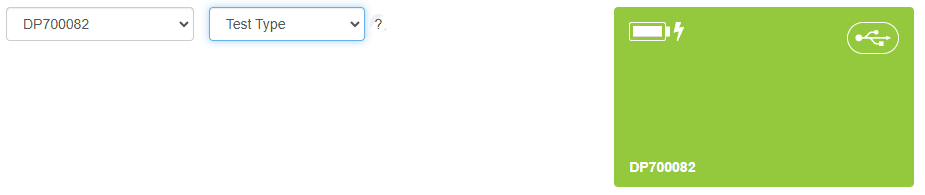
Devices Tab
When connecting a DynaPort:
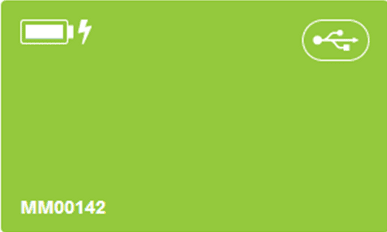
A tile appears for each device
Shows:
Device number
Battery status
USB connection
Allow Windows time to recognize the device before proceeding.
Select a Device
Click a device tile or go to the Measure tab.
For DP7:
Choose Test Type:
MoveMonitor
MoveTest
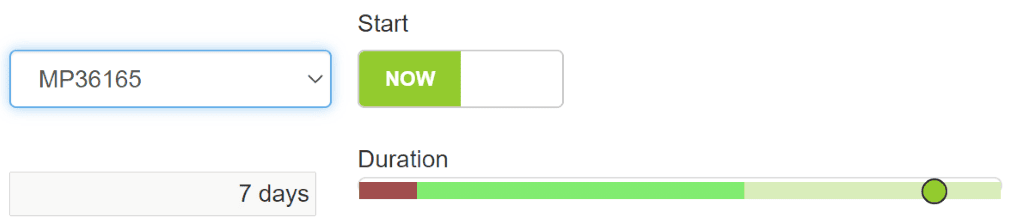
Measurement Settings
Start Time
Immediately
Or scheduled later
Duration
MM: up to 15 days
MM+ / DP7: up to 7 days
Note: DP7 supports intermediate charging (contact McRoberts).
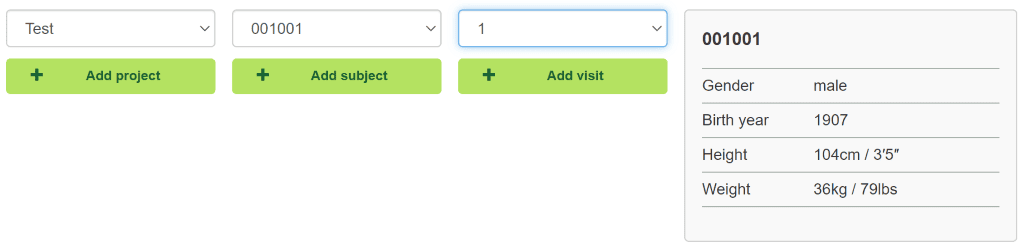
Project & Subject Setup
Add or select a project
Add or select a subject (required per participant)
Define or select a visit (time point)
Use a default if only one visit
Start Measurement
Click:
START MEASUREMENT
Disconnect when prompted
LEDs blink for ~10 seconds
Device enters standby
Measurement starts at scheduled time

Important
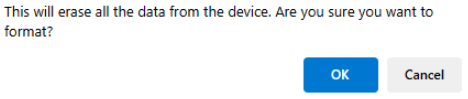
If the device contains data:
Click the blue wipe button
Confirm by clicking OK
A new measurement cannot start otherwise.

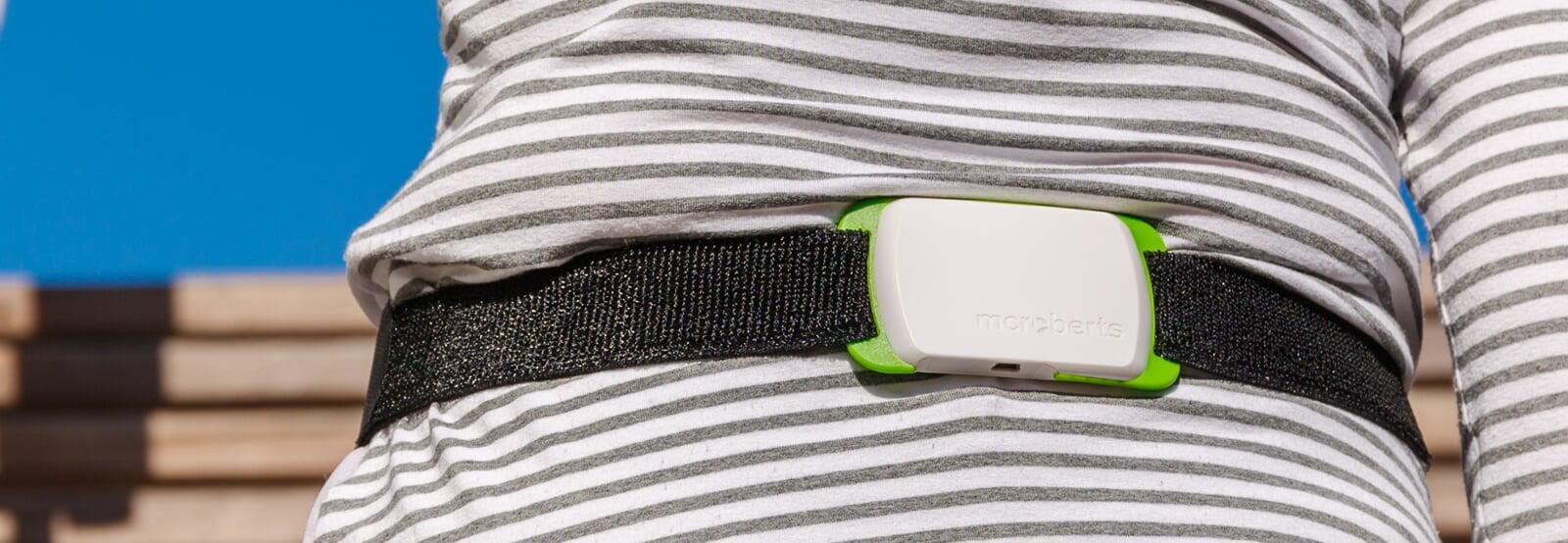
Wearing the Device
Position: lower back (waist level)
Orientation:
Logo readable
Belt on the inside
Can be worn:
Directly on skin
Over thin clothing
⚠️ The device is not waterproof
Do not use during:
Showering
Bathing
Swimming
Processing the Data
After the measurement:
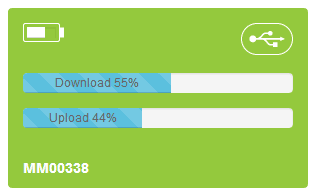
1. Connect the device to your computer
2. Log in to MyMcRoberts
Data will:
Download automatically
Upload to McRoberts servers
Be processed into reports
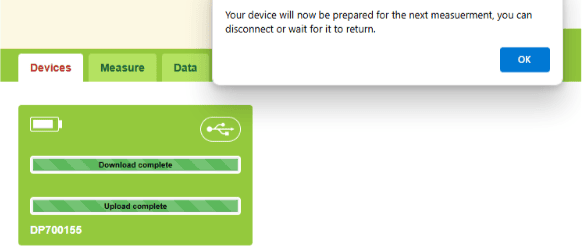
A status tile shows progress.
After upload:
Device is automatically wiped
Measurement Statuses
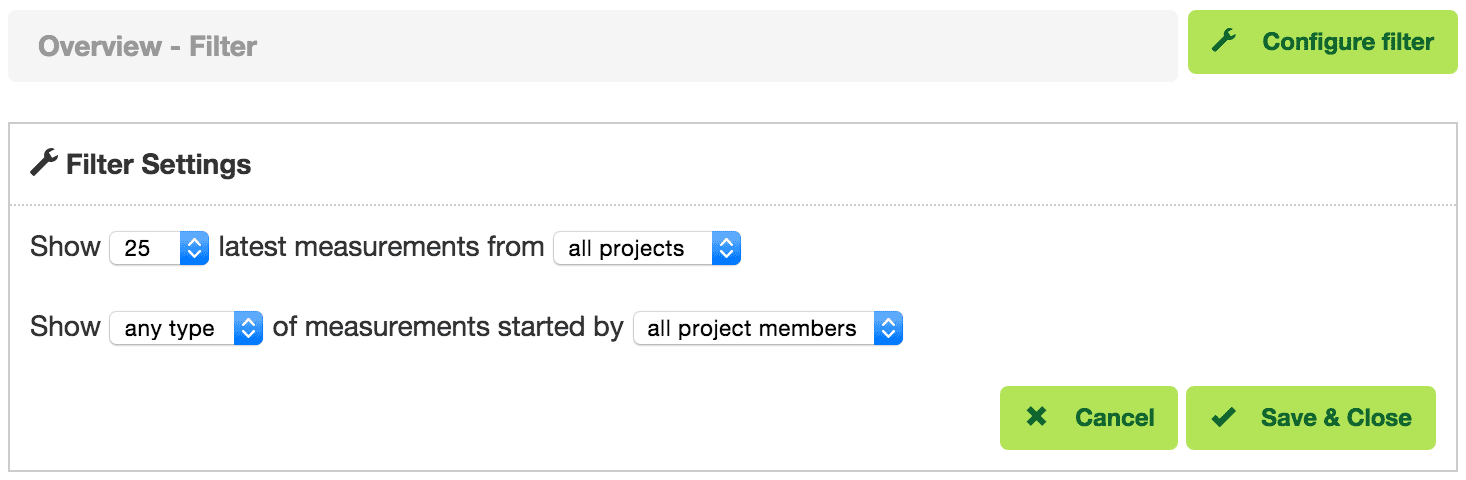
All measurements are managed in the Data tab.
Use Configure filter to customize your view.
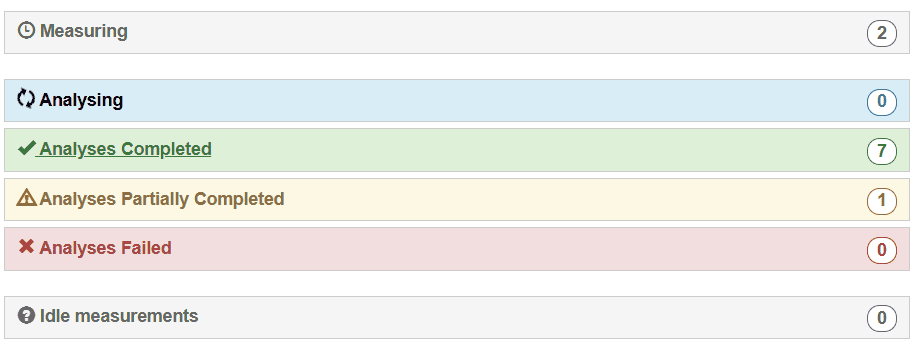
Measuring
Active measurements
Shows remaining time
Indicates when ready for upload
Analysing
Data uploaded
Analysis in progress
Analyses Completed
Reports ready
Click to view/download
Analyses Partially Completed
Applies to MoveTest only
Analyses Failed
Analysis error occurred
McRoberts Support is notified
Idle Measurements
No active processing
Often due to missing licenses
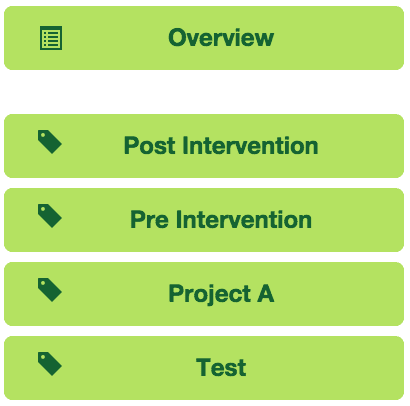
Project Overview
View measurements per project
Navigate:
Project → Subject → Visit → Measurement
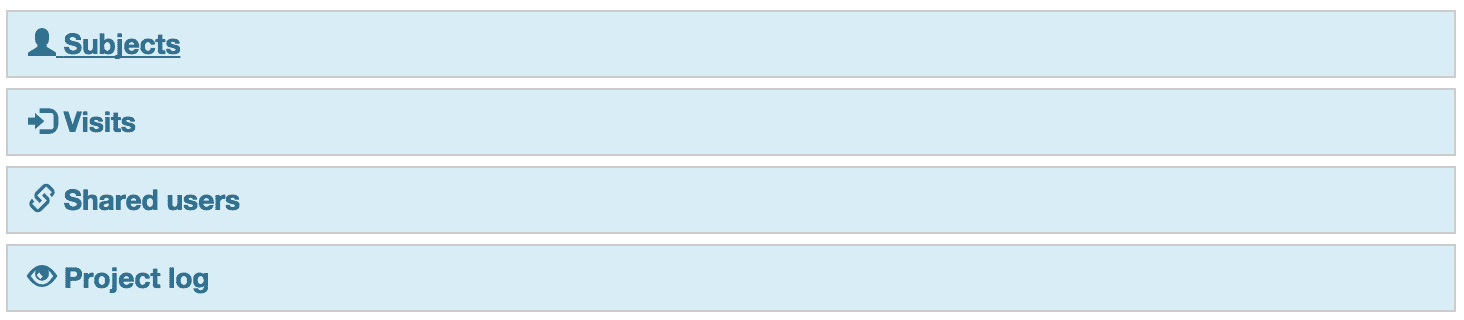
Sharing Projects
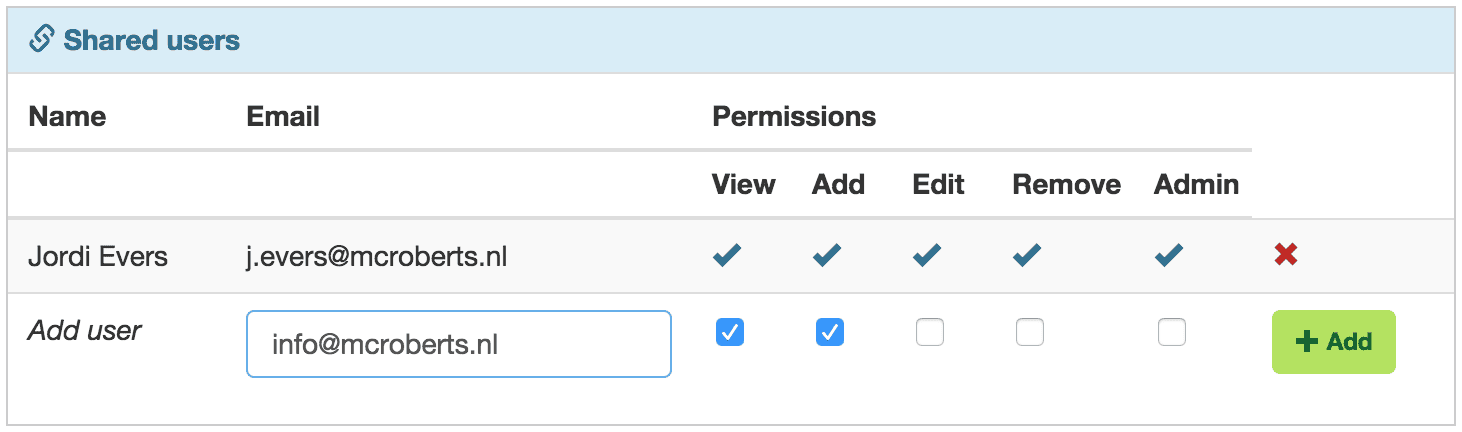
Go to Shared Users
Enter email address
Assign permissions
Requirements:
User must have a MyMcRoberts account
Permissions:
Data access rights
Admin rights (manage users)